
From the “archives.”
Stories, Photography, Images of Life

From the “archives.”

I love the “artsy” look that textures can add to photographs. Sometimes, I get carried away when I use them myself. And I go through spells when I use them a lot.
Today, my focus in some tips for applying textures to images.
I confess: I “cheat.” I use the MCP free Texture Applicator action to apply textures to images. It’s easy to use: just a few clicks, and the texture is imported into Photoshop and placed over the image; then drag the corners to resize if needed, double-click on the image, and the texture is placed. Of course, there are some tweaks—blending mode, opacity, and the like.
The MCP action creates a layer mask with the defaults of white and black for the brushes. The idea is that you can brush off the texture with a black brush over the places where you might not want texture, such as over skin in a portrait or perhaps over the flower in a “portrait of a posy.” But there are other ways to handle textures.
I’m going to play with this image today.
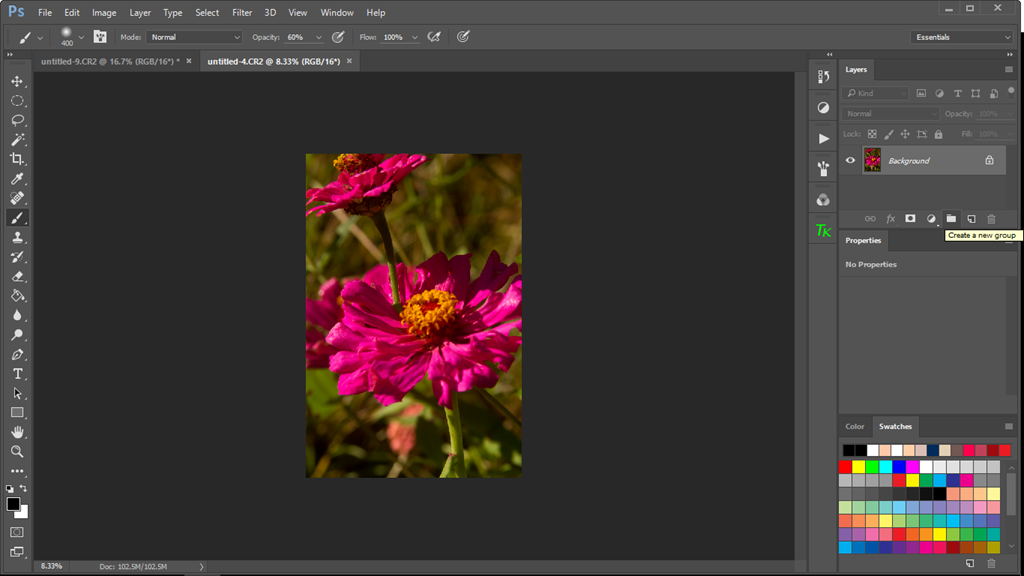
As usual, I made basic edits in Lightroom to adjust white balance, set the white and black points, and tweak the contrast, saturation/vibrance, and the like. Then I sent it into Photoshop CC for the final edits.
I want to add some fall color to this image as this is probably some of the last of the zinnias that will bloom in my little garden before frost. I don’t really need texture because the background has plenty of it. I want the texture to create a mood, though, that is not present in the original.
I am using one of Jai Johnson’s blocked texture from the Autumn Collection pack that is part of the the Design Cuts bundle deal. There are some gorgeous textures and patterns in this bundle.
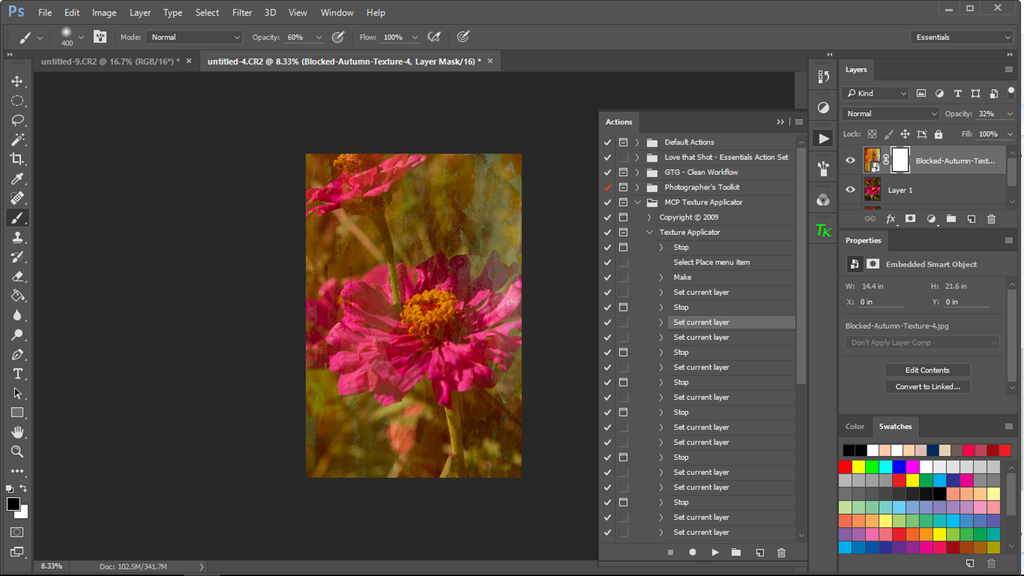
Already, I like the look. It’s painterly, and I love that look for floral images. But do I really want all that texture on the flowers themselves? This is where it’s fun to get creative.
First, I am going to experiment with the blend modes. It’s set for normal right now with an opacity of 32%, which allows the original image to be seen through the texture layer. For this image, I like the Screen mode at about 50%, but I want more of those magenta/purple zinnias to show. I can do a couple of things. I can lower the opacity of the brush to something like 20 or 30% and retain some of the texture and the color, or I can removed the texture and color all together. There is a third technique as well that softens the texture while retaining some of the color: using a filter layer with Gaussian blur. I’ll show you the results of each.
First, here is the result when I brush off the texture at about 30% opacity.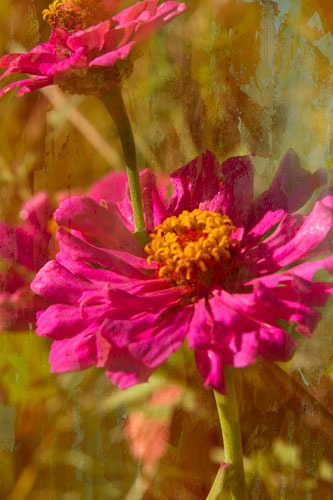
It still retains the texture that gives it a more “autumn” look with the oranges and golds, but more of the color of the flower comes through.
This version removes the texture but retains the color by applying a Gaussian blur selectively over the flower itself. When you use this method, be sure that you click on the texture thumb nail in the texture layer. Use the lasso tool and draw around the subject; you don’t have to be exact. Select Filter>Blur>Gaussian Blur from the top menu. Use the Radius slider and pull to the right until the preview is smooth. I went up to about 55 pixels. Then click okay.

More of the color of the texture layer is retained but there is less texture on the main flower. I still have painterly look but with a more muted flower color. I could go back to the layer mask and brush out some of the color as I did with the image above, or I could lower the opacity of the layer itself. It’s your personal taste and your vision for the image.

Or rather, at the end of the season. . . .
The overnight temperatures are falling lower, and the highs are not as high. Fall color is beginning to appear—oranges, reds, browns. Acorns are falling; goldenrod blooms.
My zinnias are still blooming, and perhaps, because of the cooler weather, they are more prolific than they have been all summer.
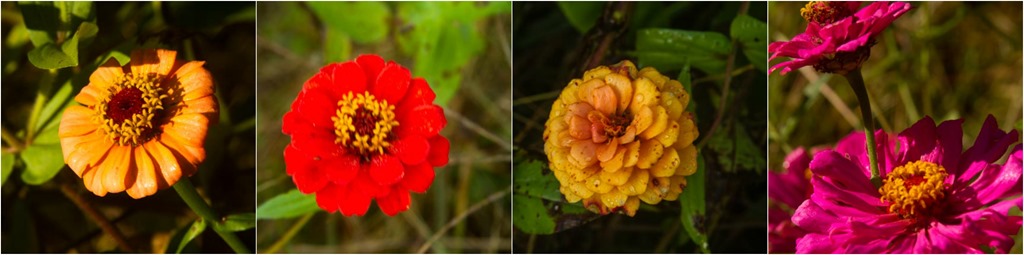
I am enjoying the last blooms and the last bit of color before the winter comes.

I have one more week in the Write 31 Days challenge. I’m hanging in there (barely). I lost my focus at times, and more often, I find myself rambling.
I went out to walk around the ponds this afternoon. We have had some gorgeous weather—blue skies, comfortable temperatures, gentle breezes. Today, the high was around 73 degrees. It was rather nice. It’s one of the reasons I love this season.
I did carry the camera with me, and I wanted to work on a couple of things: nailing the exposure and trying to achieve a more “correct” histogram. I’m beginning to think a correct histogram is a myth. I tried several things—adjusting the aperture; I found that f/11 was the best aperture for what I was trying to do. I also found that I needed to overexpose one or two stops to get a decent exposure without too many “blinkies” showing up on my screen. However, I’m also learning that my camera histogram is not the same as the one in Lightroom and Photoshop.
Another thing I practiced was using back button focus instead of the tradition shutter button on the front of the camera. The back button focus locks the focus so that if something moves in front of the lens, you won’t lose the focus on the subject. That was a real help today when the breeze blew a leave in front of some of my subjects! I won’t explain how to set back button focus since the process varies from brand to brand. That’s one of those things that you will have to look up in your camera manual.
I’ll share some of the images I took today. I set my camera on aperture priority at f/11. This setting allowed my subject to be in sharper focus but still achieve some lovely bokeh. See those little circles of light in the background? That’s bokeh. Those crape myrtle blooms are in sharp focus and the background is out of focus.
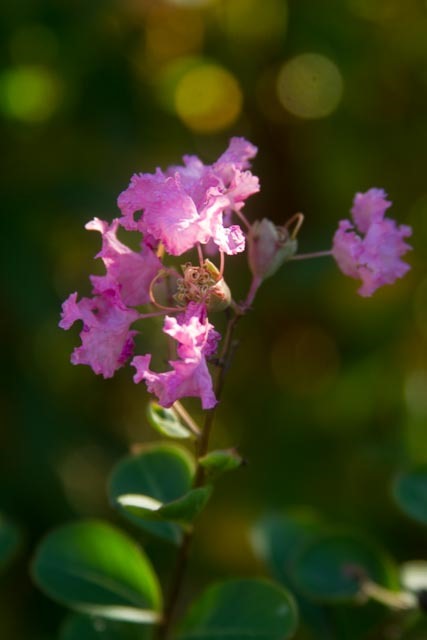
I used this crape myrtle to get some basic settings before I went for the walk. I like this image for the haziness. I think it’s because of the direction of the light.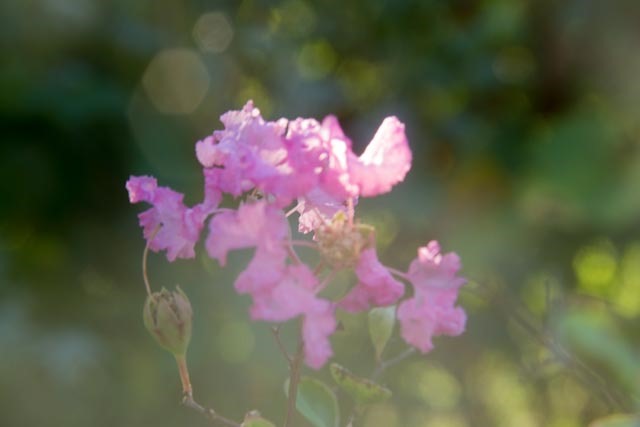
Light flooded my lens and created that haze in the bottom portion. (I could have eliminated the flood of light by using the lens hood.)
I am constantly trying to push myself to learn more about the craft of photography, not to make technically perfect photographs, but to create photographs that tell stories through art.

My grandmother used to tell us that my granddaddy would read his Saturday Evening Post from cover to cover almost as soon as it arrived.
Well, I don’t have a Saturday Evening Post to read or share. I really don’t have much to share photographically or story-wise! I have enjoyed my no-rush Saturday, actually.
I did play with some textures and overlays with some photographs. 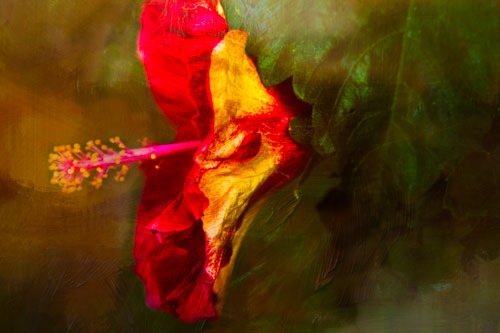
I made this image earlier this summer. (I love my red hibiscus! I just need to find a home for it inside this year.) I used several layers of textures. I splurged and bought the Gigantic texture bundle from Design Cuts (more than 2,000 files of textures and brushes and whatnot for $29.00). The bundle has more stuff than I’ll use in a year, but there are so many goodies.
Another good resource is Sebastian Michaels’s Photoshop Artistry class. It was from Sebastian that I learned that I can blend the textures more seamlessly by adjusting the opacity of the brush itself and not just the opacity of the layers and changing up the blend modes of the layers.
So, I think I’m going to poke around in my photo archives some more and find some other images to play with!

I am not rushing the Christmas shopping season with a Black (and White) Friday blog entry! Gracious, I’m all for waiting until Santa rides down Fifth Avenue in the Macy’s Thanksgiving Day Parade before I start the Christmas season.
No, I’m talking about Black and White conversions in Photoshop and Lightroom.
I chose two images from my recent trip to the mountains of North Carolina to play with. I used two methods of converting from color to black and white. The first method was done in Lightroom, with some tweaking and fine tuning in Photoshop, and the second was done in Photoshop. I’ll start with my process in Lightroom.
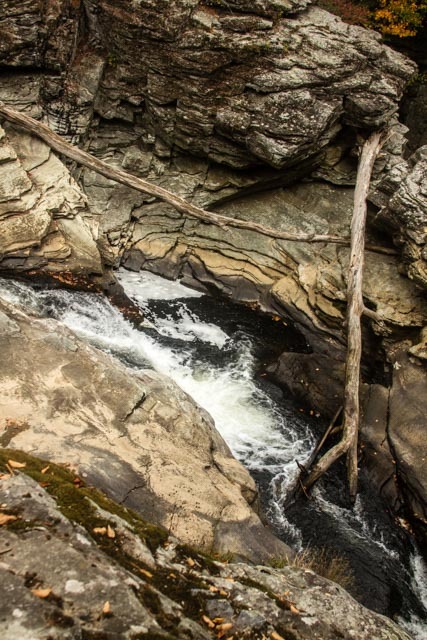
This is the original color image. I like this look. One reason I wanted to play with black and white treatments for this image is because it is already monochrome (with the exception of the green moss and the sprinkling of leaves).
First, I began by setting the black and white points with the appropriate sliders in the Development menu. I have found that making these two adjustments does more to improve my images than anything else I do. Then I made the adjustments with the Shadows and Highlights sliders. This last bit is simply done “to taste.” Sometimes, I do not mess with these sliders at all. And usually, though, the adjustments are very slight, no more than 7 or –7 in most cases.
Next, I used the Clarity slider and pushed it pretty high. On this image, I think I went up to 70. I left the Vibrance slider alone. Then I went for the conversion. I moved the Saturation slider all the way to zero. My last Lightroom adjustment was to the Curves, and I applied the Strong Contrast preset. Then I imported it into Photoshop for a few minor tweaks to levels and curves and contrast. This is the result.
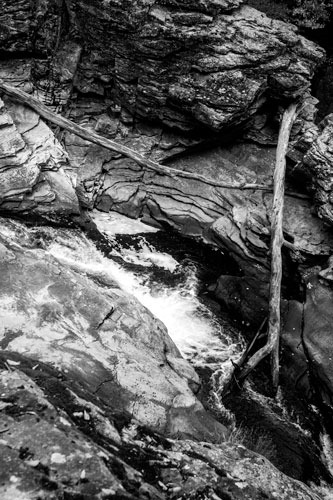
The next image I used was also the Linville Falls. I am fascinated with the narrowness of this section of the falls and the texture of the rock formations.
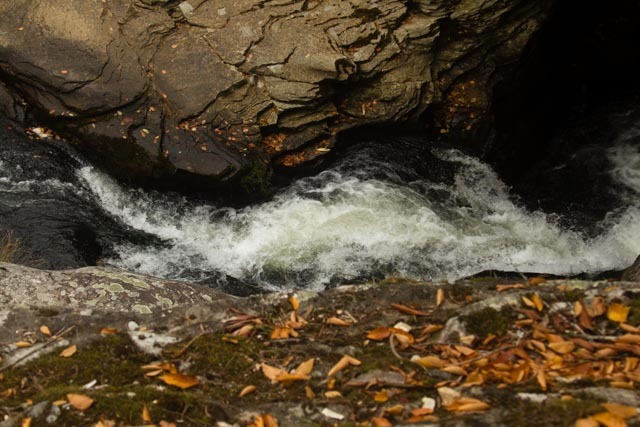
Again, I like the color version. Like the previous image, it is also basically monochrome in nature, with a little pop of color from the fallen leaves. I decided to give this one the Photoshop treatment. But first—yes, I made my basic edits in Lightroom—adjusting the black and white points, the shadows and highlights, and the curves. I used the Medium Contrast preset on this one. Then I sent it to Photoshop for the rest of the edits.
I used a Levels adjustment layer to tweak the whites and the blacks by dragging the sliders to the left for whites and to the right for the blacks. Because of the adjustments in Lightroom, I had very little to do with this layer. Then I added an Brightness/Contrast layer and boosted the contrast to about 20 and tweaked the curve in a Curves layer by drawing down the highlights and raising the darker areas. Finally, I added a Hue/Saturation layer and completely desaturated the image. Here is the final result:

The black and white works for both images because the images have a monochromatic feel to begin with. I’m still working on perfecting my black and white conversions.
I’m sure I’m not the only one. I need constant reminders that I have much for which to be thankful. I get bogged down in the details of “life” and begin to think that thanks are just too hard. I forget to pay attention to the world around me. Just now, as I am writing, I glanced out the window to watch a couple of squirrels play chase with each other down by the pond. It’s been a very quiet day. This little scene of animals playing chase brought a smile to me.
I am constantly reminded that I am to give thanks and to rejoice in all circumstances. Thank goodness, I am not called to give thanks for those circumstances. I just need to give thanks and to be joyful in those circumstances. I know you’ve seen the Facebook meme that reminds of us that because we woke up in a bed, have a job to go to, have food in the refrigerator to put on our tables, among other “creature comforts,” we are richer than the majority of people on earth. I need to remind myself of that when I don’t have the very thing I think I want.
So, with those thoughts in mind, I’m going to revive my Thankful Thursdays at least through the end of November.
I am thankful for this week of quietness and less busy-ness, for time to read and write, to work with photographs, to walk around the ponds, to play the piano.
I am thankful for “home,” wherever that happens to be at the moment—the the place where I have resided for the last 32 years, for the place where I grew up, for the people who inhabit these places.
I am thankful that I live in a nation where I can express my opinion openly and freely without fear of retaliation, imprisonment, or even death. Not all of the world’s citizens are so lucky.

Ars Poetica
A poem should be palpable and mute
As a globed fruit,
Dumb
As old medallions to the thumb,
Silent as the sleeve-worn stone
Of casement ledges where the moss has grown—
A poem should be wordless
As the flight of birds.
*
A poem should be motionless in time
As the moon climbs,
Leaving, as the moon releases
Twig by twig the night-entangled trees,
Leaving, as the moon behind the winter leaves,
Memory by memory the mind—
A poem should be motionless in time
As the moon climbs.
*
A poem should be equal to:
Not true.
For all the history of grief
An empty doorway and a maple leaf.
For love
The leaning grasses and two lights above the sea—
A poem should not mean
But be.
“Ars Poetica” is one of my favorite poems. I know, it’s a twentieth century poem by an American poet, and I’m all about the Nineteenth Century British poets. But still, it’s one of my favorite poems because it is so full of visual imagery. Of course, MacLeish is talking about the written word and the power of the word to create word pictures in our heads. He’s also talking about the tendency to overanalyze a poem and beat it to death teasing out the deeper meanings.
Sometimes, we do the same thing to photographs. We overanalyze and try to find deeper meanings when the meaning is right there in the image. I love the image in the last stanza: “For all the history of grief/An empty doorway and a maple leaf.” Can you picture a photograph of an open doorway in an old house, weathered wood siding around it, filled with leaves that have fallen from nearby trees? There is something sad about a house that is no longer a home.
I am thinking about my own photographs today and the stories that they tell the viewer. Are my images illustrations of the old saying, “A picture is worth a thousand words”?
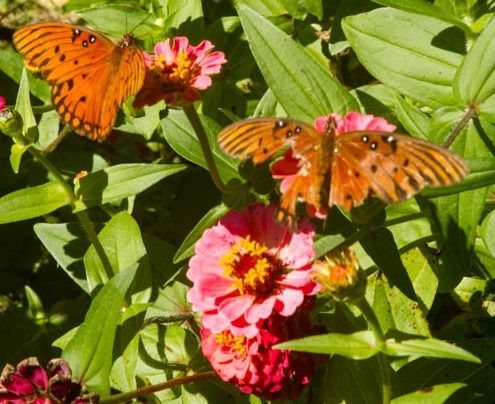
Contemplative photography practices have caused me to slow down before pressing the shutter, and sometimes, but perhaps not often enough, I ask myself about the story that I want the image to tell. Do I need words to express the story, or will the photograph tell the story by itself?
I think the image of the butterfly above is one of those images, the torn wings, pieces missing—this butterfly has had a hard life. It is juxtaposed with the fresher butterfly. There is a sadness to this image. This butterfly will not last long. But I don’t need the words to tell that story.
I’m thinking that Wednesday may become a “Wordless Wednesday” post. Check on my Telling Stories page on Facebook or the Seeing with the Eyes of the Heart page on Facebook for some Wordless Wednesday inspiration.

Yesterday, I wrote about how I’m trying to be a planner. One thing I do with my planner is keep “memories.” As I’ve said before, I have scrapbooked, and I still enjoy making the large 12 by 12 layout and playing with paper and embellishments and photos and words. But I’ve scaled down, too, to putting images in my planner instead of the larger scrapbook. Here is one thing I do.
After I make my basic edits in Lightroom, I save them in sizes that I can post to emails or to Facebook or to use in blog entries. (I use the For Email—Hard Drive setting in the Export menu of Lightroom). Then I have fun.
Now, I’m all about easy. There are templates and such in the Lightroom Print module to create photo film strips and collages, but you can’t beat the ease of the online app at www.befunky.com. It is seriously “easy as pie.” First, I select the images I want to play with and upload them to BeFunky.
Then I choose the Collage Maker option. 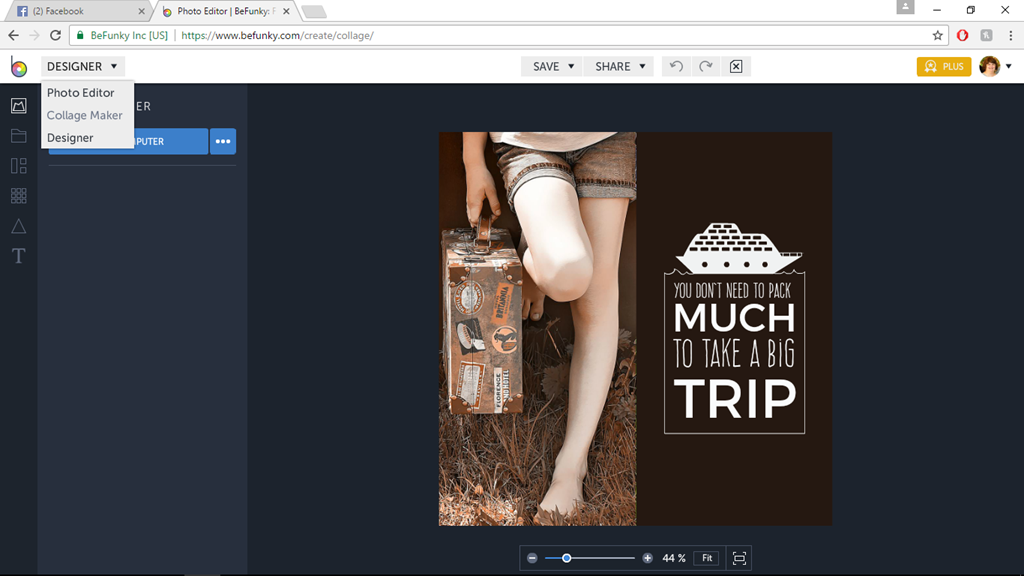
From that point, I select the kind of collage I want—a Facebook cover (I haven’t done that yet) or a grid or some other option. Then I choose the autofill option, let the app plug in the photos, and rearrange them if I want to by dragging and dropping into place.
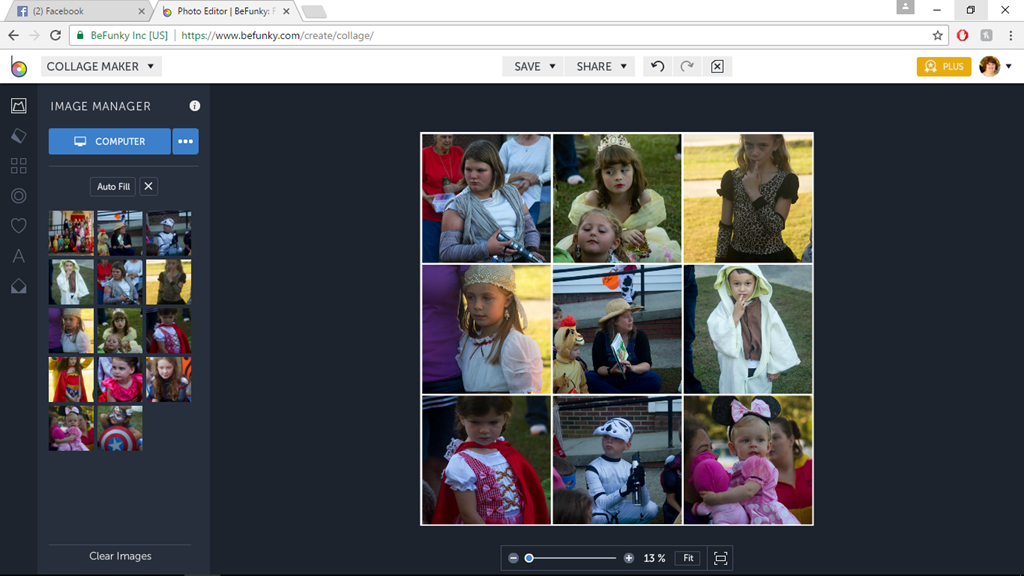
Then I save the completed image to my folder with the originals, and, Viola!, I am done. I can print out the image on my printer or just hold on it. The app also allows you share on Facebook, Twitter, Pinterest, or Tumblr.
I used some images from Sunday’s Trunk or Treat at my church to create a couple of quick collages to put in my planner:
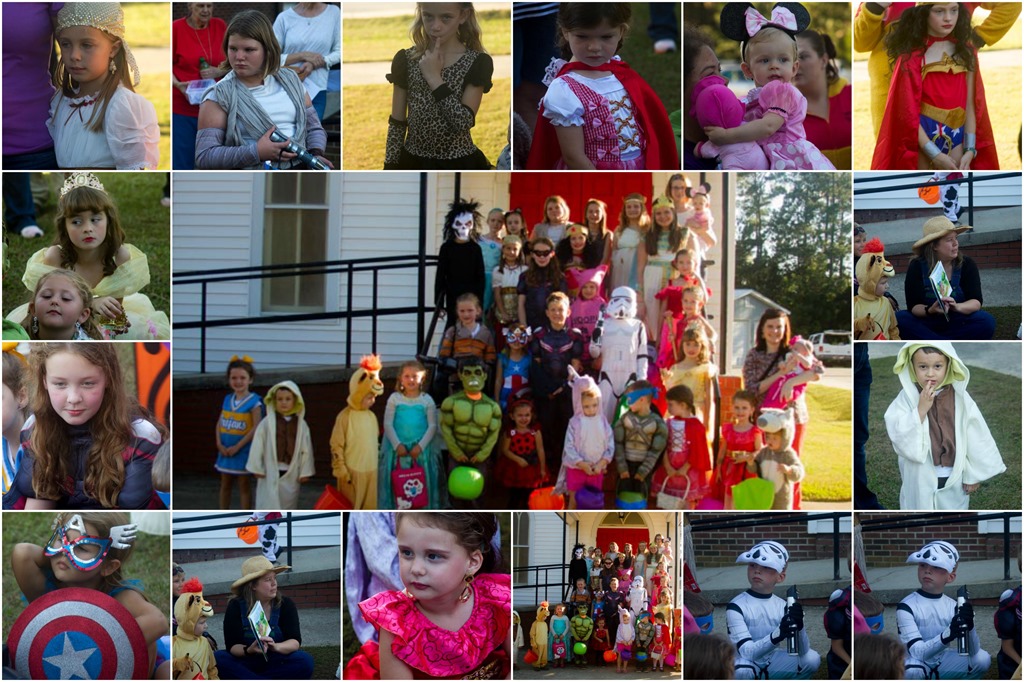
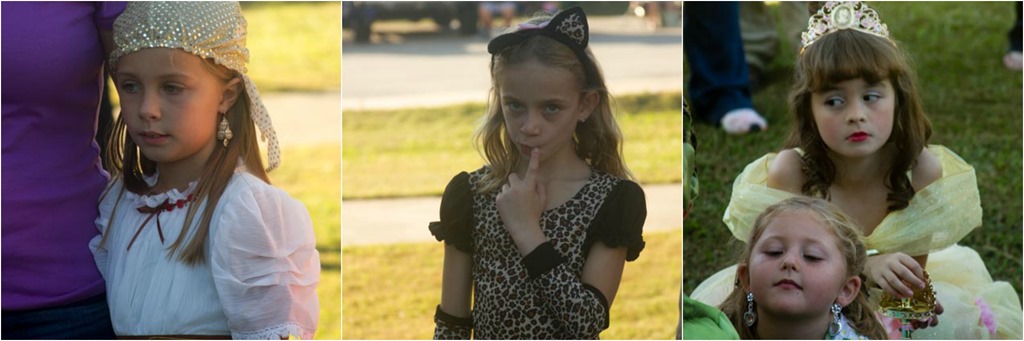
BeFunky is free, as are many photo editing apps online, but there is also a premium version that gives the user more options. I opted for the premium version, and I am glad I did. It is worth the $25.00 annually for more options and more ways to “express” myself with the images.

Are you a planner and super organized and know exactly how each day will go?
I am NOT a planner or an organizer; I tend to be more “big picture” and “spontaneous” when it comes to planning. I tend to think of things in terms of routines and practices rather than schedules and to-do lists. Sometimes, I wish I were more organized and scheduled and planned, but things are as they are, right? Maybe it’s just that I’m more flexible and adaptive.
I have been experimenting with different ways to plan or design my days. Maybe it’s because I’m a teacher, but I love planners and office supplies and pens and fancy paper clips (and not so fancy ones, too). I have a collection of colored pens and markers. I even have a box of 64 Crayola crayons! I print off planner stickers.
I have FOUR planners: one is for the “everyday” things; one is to track my daily Bible study and to keep prayer requests; a third one tracks my blog entries, and the fourth one is work-related to keep my class schedule and related meetings and tasks. 
When I started getting serious about planners and calendars, I found out that there are more ways to skin the planner cat than one. There’s “Right Brain Planning” (Teresa Robinson is the guru), Fauxbonici planning (based on the Japanese system of Hobonici planniing); bullet journaling, and “creative” planning. There are systems that invite you to set your goals for the day, week, month, year, five years, ten years, and life; there are systems that include appointment calendars and to-do lists. There are systems that use codes and symbols and colors. . . . And there are art-journal inspired planners (or unPlanners as one group calls them).
Is it any wonder that I am a bit overwhelmed now with planning and trying to get my life organized?
I have to admit, though, that I am caught up with the Happy Planner system produced by Me and My Big Ideas (MAMBI). here’s the story: I was a scrapbooker (and still am, though not as much as I used to be); I want to keep memories in some kind of way, whether through journaling or through scrapbooking or something else. However, now that my children are own their own, I do less scrapbook pages. I discovered, though that the Happy Planner is a convenient way to keep memories and do some planning and scheduling. It is becoming my way of keeping a record of life. I sometimes include photographs that are meaningful to that day. I punch holes in invitations that I want to keep, birth announcements, quote cards that I find, things like that. And you know what? I have a kind of scrapbook. I can look back and see what was important to me on a particular day or during a particular week or month. I can see what the important events were, like the days of Hurricane Matthew that created havoc for South Carolina’s coast or the church’s homecoming services and family reunions and my son’s band competitions. I can write ahead and put in future events—an upcoming bridal shower for my son’s fiancee, for instance, and keep track of the choir anthems that I need to learn.
The main thing I’m learning about planning is that merely writing an event or a task down does not get it done. I list “photography” as one of my daily activities. (It’s almost noon and I haven’t picked up the camera yet! And I listed going for a walk as one of my activities for today, and I’m still in my pajamas. Nor have I yet practiced the anthem for Sunday morning, and we have choir rehearsal tomorrow night.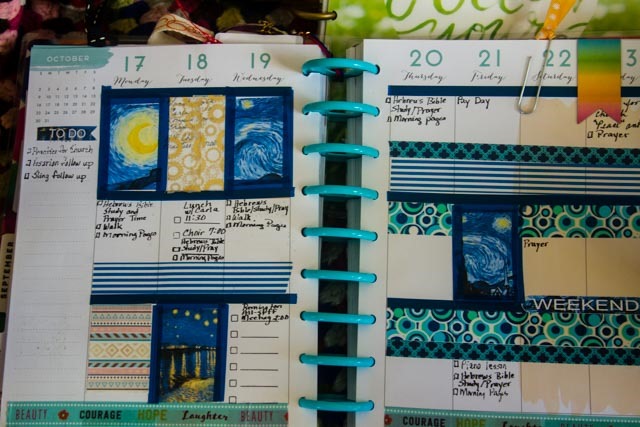
I am using these planners, though, and someone in the future will have “fun” figuring out how I am through these little snippets of my days and weeks and months and years.
 Telling Stories