December—The Old Will Be Giving Way to the New

Two-thousand seventeen is twenty-eight days from being over. Christmas will be here in twenty-three days. I am not sure where 2016 went. It seems that it was just January 1.

Last year this time, I wanted to cancel Christmas and all its festiveness. I did not feel like celebrating. I was in the midst of grieving, though, and I could relate to the first line of the Christmas carol, “in the bleak midwinter.” I did not want to celebrate.

This year is different. I began thinking about how I would celebrate Christmas this year even though I am still grieving. I’m not sure I will ever stop grieving, but I am no longer mourning. This year, in fact last month, I put together a “December Daily” album. I have participated to some degree in Shimelle Laine’s “Journal Your Christmas” class for several years (I have the incomplete albums as proof). This year, I also joined Susannah Conway for “December Reflections.” My goal is to record the month of December in some way, whether it is through writing journal entries and putting them in my December book, or taking photographs, or crafting something. Shimelle’s first prompt in Journal Your Christmas is to write a Christmas manifesto. Here is mine for Christmas 2016:

This December I will

  • SLOW down
  • feel more JOY
  • Express more LOVE
  • ABIDE in moments of peace and quietness
  • experience STILNESS amidst the bustle of the holidays

I think one reason I feel “Grinchy” and “Scroogy” so often during the holidays is that I push  myself to do more than I should or even can. I get caught in busy-ness instead of the business of Christmas.

As a Lutheran, I live by two calendars: the “fiscal” calendar that begins on January 1 and ends of December 31, and the liturgical calendar that begins on the first Sunday in Advent, which is the four weeks before Christmas. Last Sunday, November 27, was the beginning of the new church year. Advent is supposed to a quiet time of waiting for the revelation of Jesus Christ on Christmas Day. It is quietly celebratory, meditative, anticipatory.  I want to live the Advent season this year, and I am using this creative project—the combination of December Reflections, Journal Your Christmas, December Daily, to help me live out the manifesto.

Today is Day 2 (I am one day behind). Today is time to slow down.

Scrapbooking again!

I guess it’s natural that a photographer should also want to scrapbook. I used to complete about three layouts a month—at least until we lost our home to a fire. Then I stopped. I was able to salvage some supplies, and other kind people gave me more. I have a craft room now that the boys have moved into their own homes. However, I have not been an active scrapbooker in five years or so.

Well, I started scrapbooking again—sort of. I’m making a couple of mini-albums. Each year I’ve kept a gratitude list during November. Sometimes, I’ve challenged myself by using the number of the day as the number of things I would list that day. I’m not going to do the math to figure out how many things would be in the list at the end of the month.

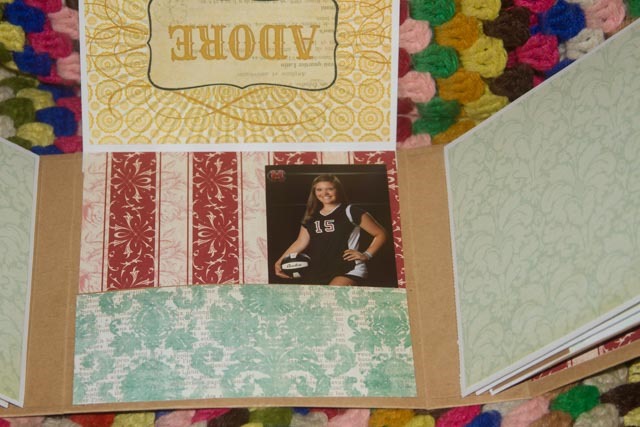
This month, I have joined Jacquie Smith for her gratitude challenge. She provides a prompt for each day and a creative way to present the response. I admit that I’m not following her creative prompts so much. However, I am looking through my pictures to find something and I am putting the photographs in a gate fold mini album that I made using product from my stash (and my kitchen). I have not yet written the journaling for each photograph, but I am putting them in the book and making notes in my Happy Planner to refer to later.

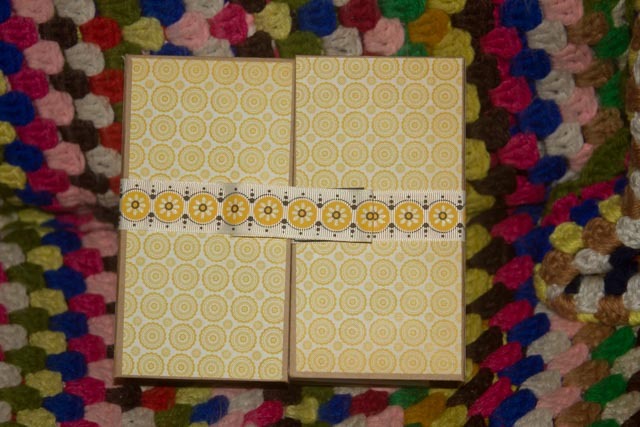
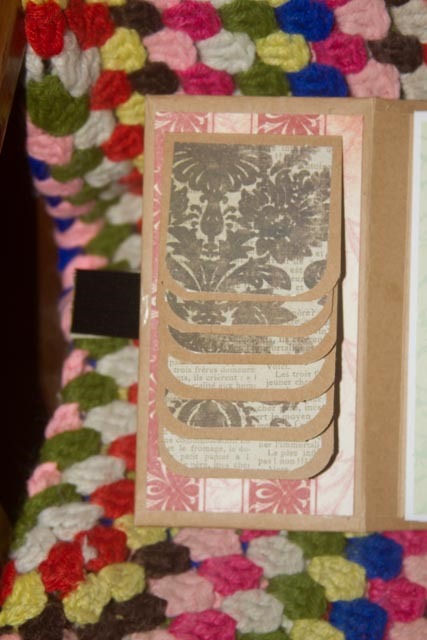
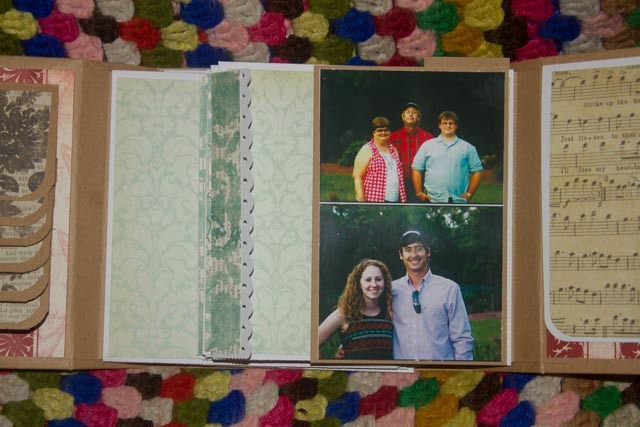
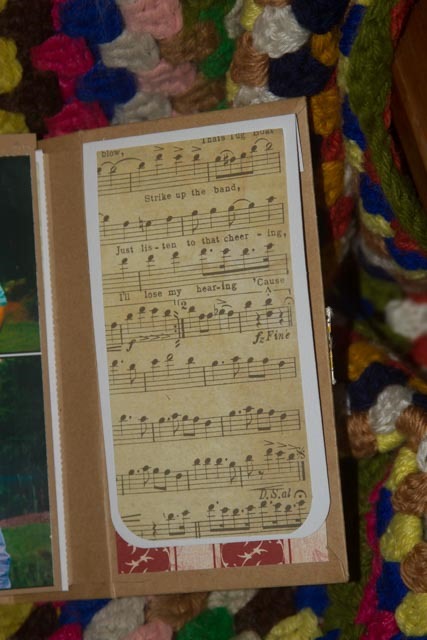
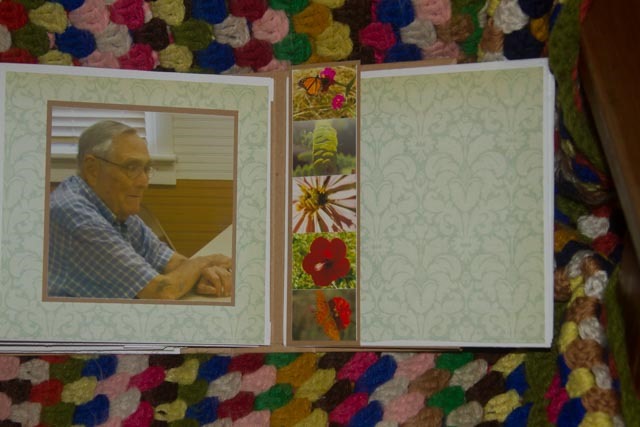
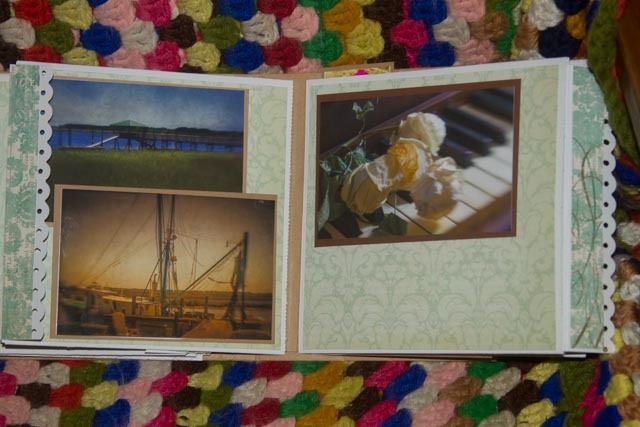
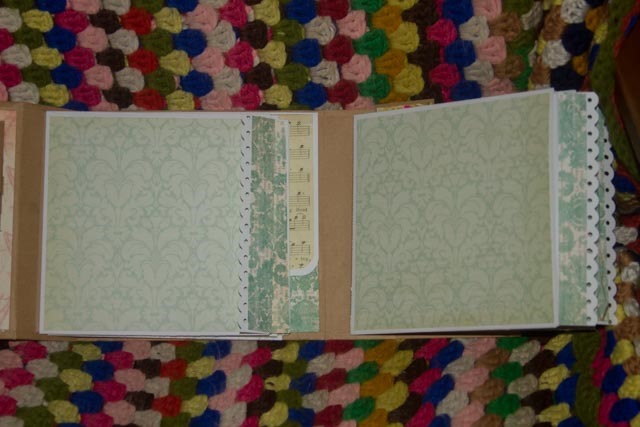
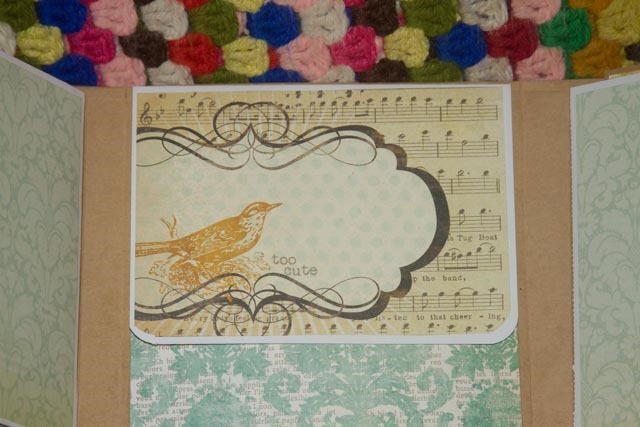
Here are some pictures of my book so far.

untitled-2untitled-3untitled-4untitled-5untitled-6untitled-7untitled-8untitled-9untitled-10untitled-11

I used the tutorial here to assemble the book. I normally do not use white as the base for a scrapbook page. However I didn’t know exactly what I wanted to do with embellishments, so white provided a neutral base.

There are quite a few little pockets to tuck journaling cards or tags or other things. Each of the six large pages has a two-sided pullout card of its own to use for photographs and/or journaling. Most of the papers came from an older My Mind’s Eye pack (I don’t know the name of the pack, though).

To make the chipboard cover, I used a cereal box, cut to size, covered with Kraft paper, and then glued on some patterned paper. I found a piece of ribbon with a motif that matched the patterned paper and used a piece of velcro to hold the book close.

I am in the process of putting together my December Daily/Journal Your Christmas mini-album now using a different technique. It’s nearly done, waiting to filled during the month of December. These little books are easily displayed and get images off the camera and out of the computer.

An Editing Walkthrough

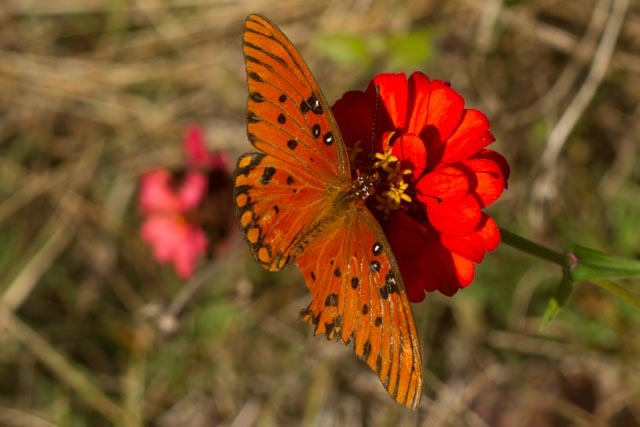
When I started participating in contemplative photography classes and reading some books about this approach, I discovered a term: wabi sabi. It’s a Japanese philosophy of see the “perfection” of the imperfect, of recognizing the impermanence of things. It’s not about the defect itself, but about the beauty that is present there. During the last few weeks, my zinnias have been blooming in abundance, and the butterflies are covering those blooms. When I can sneak up on them, I can get a some images. And twice, I’ve found some butterflies with torn and battered wings. There is beauty there.

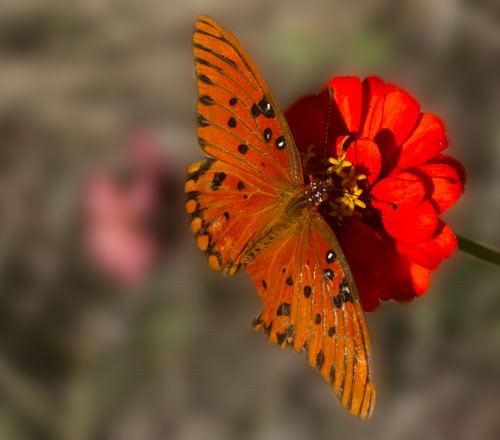
This is yesterday’s image of the “wabi sabi butterfly.”

untitled-30

The more I looked at the image, the less I liked it. It’s fine—in focus, exposure is good; black and white points set acceptably. But I thought the background was too much—too much texture in contrast with the red zinnia and the butterfly. This morning I played a bit.

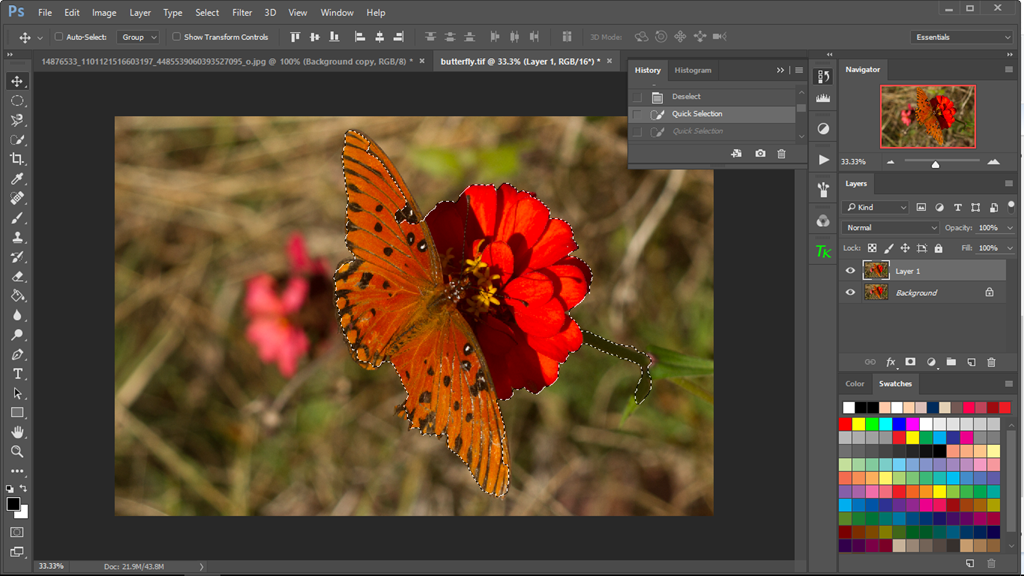
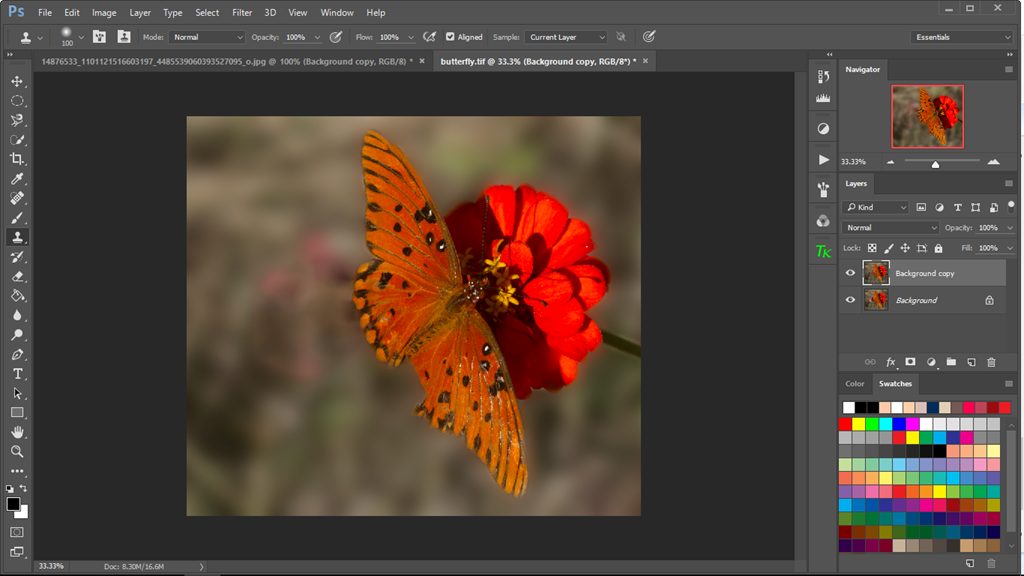
After importing into the Photoshop CC, I duplicated the background layer. The I used the Quick Selection tool to select the butterfly, the zinnia, and that bit of stem connected to the flower itself.

image

It took a few tried to get the selection made! It’s not as easy as it looks. The I used the Inverse to select the background by going to Select > Inverse (The shortcut is Shift-Control-I on a PC).

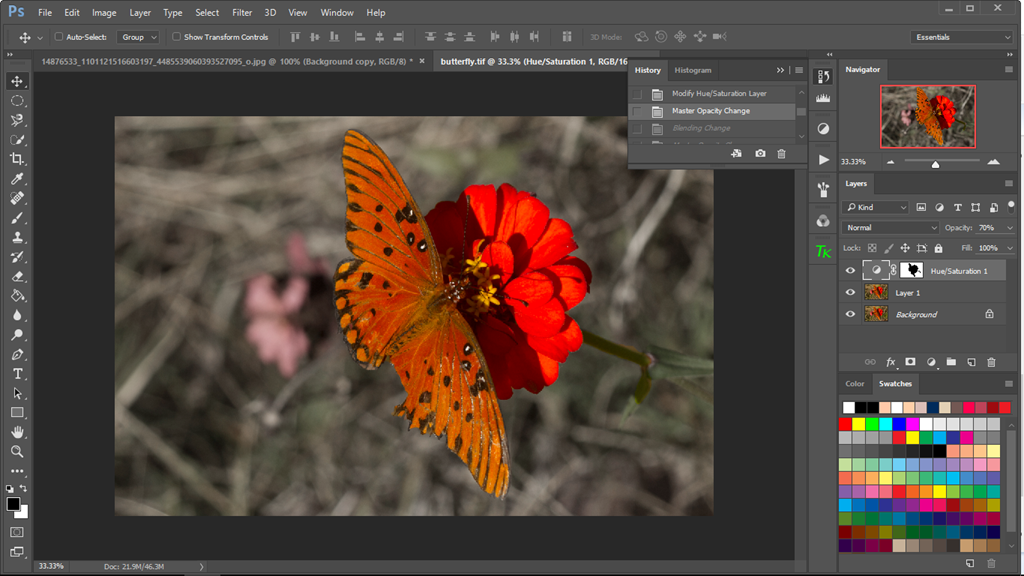
Next I selected the Gaussian Blur filter and set the radius pretty high to get the background nice and blurry. Then I added a Hue/Saturation adjustment layer, moved the saturation slider to 0, and adjusted the opacity to give it a hint of color.

image

Then, I flattened all layers. I still wasn’t terribly pleased with the result. I duplicated the background one more time and cropped the image to a square. The problem I had with the edited image above is the feeling that the flower is just floating there, unattached to the ground or the background. I tried several things, including brushing off some of the blur and brushing the color back on. The subject still felt disconnected.

That’s when I decided to crop the image to a square (1:1 ratio).

butterfly

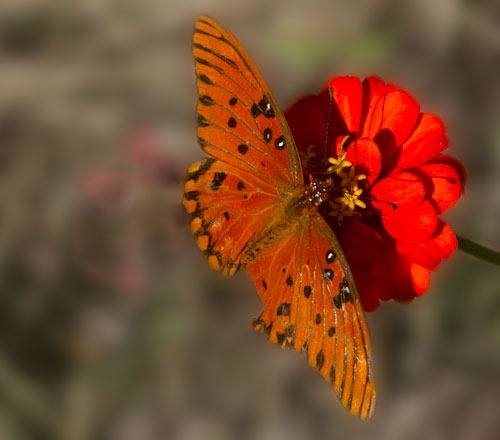
The result is better. I’m not sure about that pink flower in the background. It’s still a bit “colorful. I tried desaturating that one area (not!), and adding more blur (uh-uh). Cloning wasn’t helping either, so I tried applying a Content-Aware Fill Layer. (Layer > Fill. Choose Content-Aware  from the drop-down menu.) There is just a hint of color from that pink flower, but I think I like the results better.

image

I’m almost satisfied with the image as it is. I’m going to leave it alone for now and see how I feel later.

butterfly-final-edit

Let me know what you think in the comments.

Monochrome Edits—Black (and whtie) Friday on Saturday

As you know, if you read my Thursday entry, it’s been quite the week around the Fulmer household. We are thankful that our son continues to improve! I spent yesterday in “recuperation” mode and missed my Black(and white) Friday.

Today (it’s Saturday) I wanted to create a vintage look by applying a sepia finish. I know, there are numerous Photoshop actions that can accomplish the same effect, but I wanted to learn a process myself. And, as one writer pointed out as I looked at tutorials and directions, there are about 9000 ways to do the same thing in Photoshop, so you may find a technique that works better for you.

untitled-45

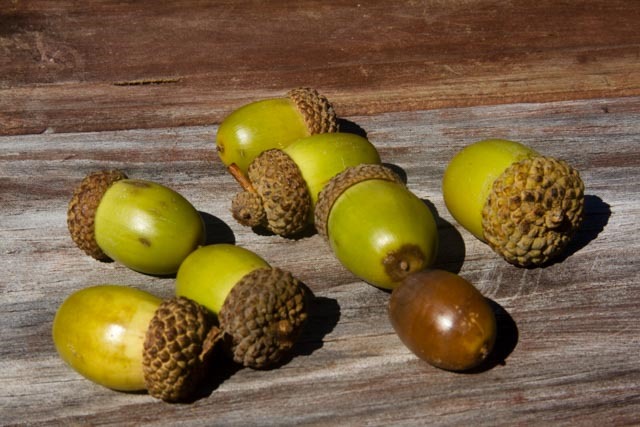
Here is my original. I had gathered some acorns and put them my pocket one morning in honor of my father, who frequently put things in his pockets when he was outside. There were all kinds of things on our hearth where he emptied his pockets! To me, this image wanted a vintage effect.

After making adjustments in Lightroom, I sent the image to Photoshop CC. The first thing I try to do is duplicate the background layer by using the shortcut Ctl-J on my PC.

Next, I created a Channel Mixer adjustment layer and checked the Monochrome box. Doing that converted the layer to black and white/grayscale.

Then, I opened a Photo Filter layer, and chose the Sepia present. I adjusted the density to about 90%. I wasn’t quite satisfied because I wanted a little of the color of the acorns to show. So, I went back to the Channel Mixer layer, adjusted the brush opacity to 30% and brushed out the effect to reveal some of the greens and browns of the acorns only.  This is the final result.

monochrome-acorns

It’s mostly monochrome with a vintage look.

NOTE: I tried another method, using the tutorial here. There are multiple steps, and the result is a color version. To this, I added a black and white adjustment layer and a photo filter for sepia, with the density set at 80. Here is the result.

monochrome-acorns-2

Thankful Thursday

I am sharing a link to an interesting article about keeping a daily gratitude list. Ann Voskamp has been writing about gratitude for a good while, and her book One Thousand Gifts has been very influential on my thinking about thanksgiving.

I have been working on my planner for the remaining days of October, and it will soon be November, the traditional month for sharing thanks and gratitude. The article I mentioned above is by a planner designer, and she shares seven benefits of being grateful and keeping gratitude lists. It is worth reading this article even if you don’t keep a formal written list or a gratitude journal. Go over to Jacquie Smith’s site to read it.

Yesterday, my son had a health scare. He started having severe abdominal pain and nausea. After trying to calm himself and deal with the pain, he called an ambulance. After four or five hours in the ER, the doctor determined that he had a kidney stone. So, my gratitude is centered around this:

1. Thankful that it was JUST a kidney stone and nothing more serious (it’s amazing what all a mama can imagine is wrong when she gets the call that her son is calling an ambulance for himself)

2. Thankful for the staff at the Carolina Health Marion Systems hospital who took care of John.

3. Thankful for safe travels to and from John’s home in Mullins.

In the coming weeks, take time to be thankful for something that brings you joy each day.zinnias

Textures—the Tuesday Technique

I love the “artsy” look that textures can add to photographs. Sometimes, I get carried away when I use them myself. And I go through spells when I use them a lot.

Today, my focus in some tips for applying textures to images.

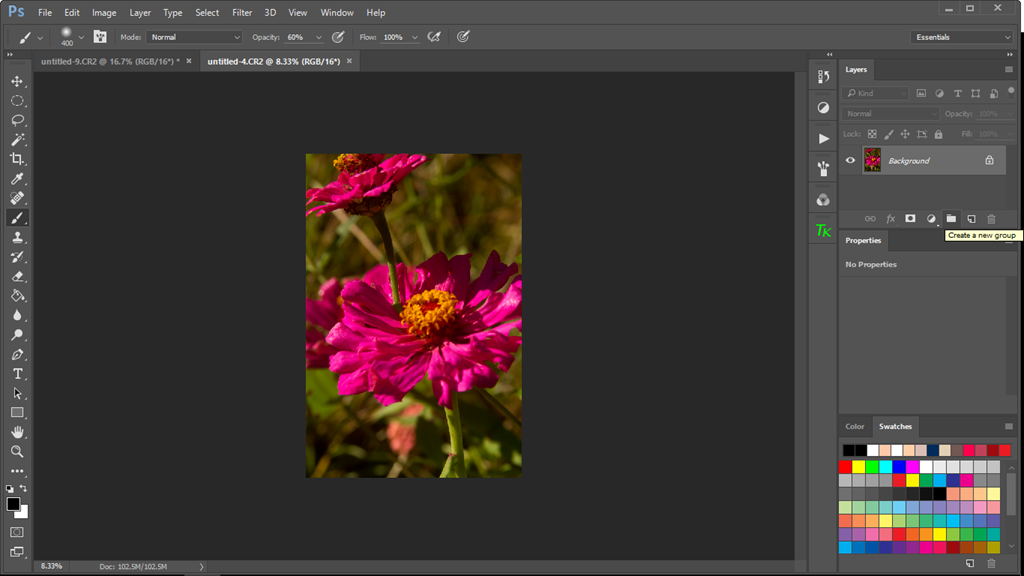
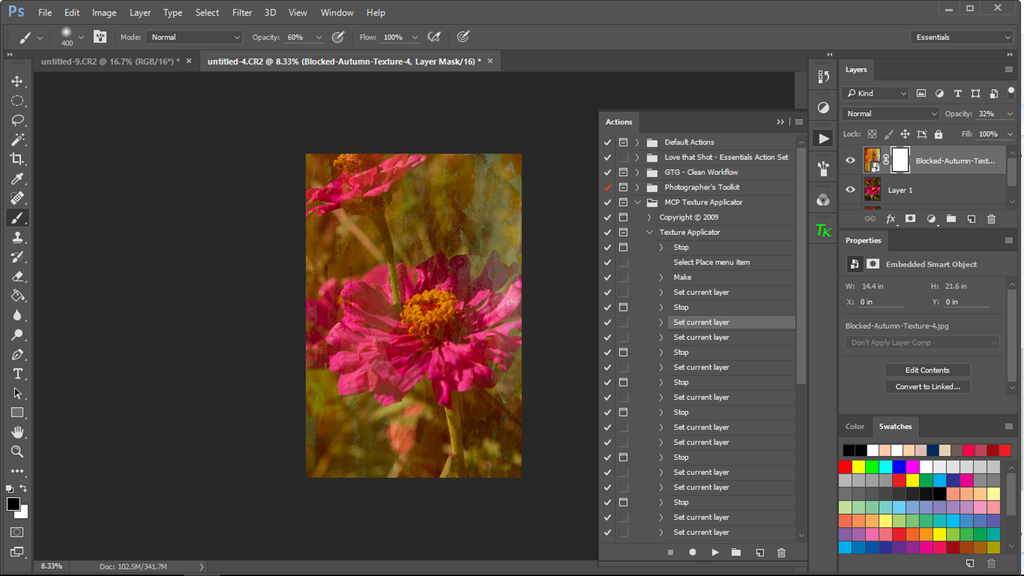
I confess: I “cheat.” I use the MCP free Texture Applicator action to apply textures to images. It’s easy to use: just a few clicks, and the texture is imported into Photoshop and placed over the image; then drag the corners to resize if needed, double-click on the image, and the texture is placed. Of course, there are some tweaks—blending mode, opacity, and the like.

The MCP action creates a layer mask with the defaults of white and black for the brushes. The idea is that you can brush off the texture with a black brush over the places where you might not want texture, such as over skin in a portrait or perhaps over the flower in a “portrait of a posy.” But there are other ways to handle textures.

I’m going to play with this image today.

image

As usual, I made basic edits in Lightroom to adjust white balance, set the white and black points, and tweak the contrast, saturation/vibrance, and the like. Then I sent it into Photoshop CC for the final edits.

I want to add some fall color to this image as this is probably some of the last of the zinnias that will bloom in my little garden before frost. I don’t really need texture because the background has plenty of it. I want the texture to create a mood, though, that is not present in the original.

I am using one of Jai Johnson’s blocked texture from the Autumn Collection pack that is part of the the Design Cuts bundle deal. There are some gorgeous textures and patterns in this bundle.

image

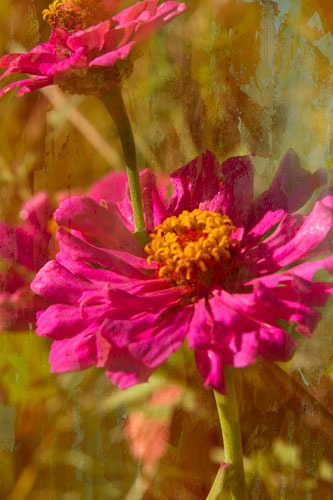
Already, I like the look. It’s painterly, and I love that look for floral images. But do I really want all that texture on the flowers themselves? This is where it’s fun to get creative.

First, I am going to experiment with the blend modes. It’s set for normal right now with an opacity of 32%, which allows the original image to be seen through the texture layer. For this image, I like the Screen mode at about 50%, but I want more of those magenta/purple zinnias to show. I can do a couple of things. I can lower the opacity of the brush to something like 20 or 30% and retain some of the texture and the color, or I can removed the texture and color all together. There is a third technique as well that softens the texture while retaining some of the color: using a filter layer with Gaussian blur. I’ll show you the results of each.

First, here is the result when I brush off the texture at about 30% opacity.zinnias-with-30%-texture

It still retains the texture that gives it a more “autumn” look with the oranges and golds, but more of the color of the flower comes through.

This version removes the texture but retains the color by applying a Gaussian blur selectively over the flower itself. When you use this method, be sure that you click on the texture thumb nail in the texture layer. Use the lasso tool and draw around the subject; you don’t have to be exact. Select Filter>Blur>Gaussian Blur from the top menu. Use the Radius slider and pull to the right until the preview is smooth. I went up to about 55 pixels. Then click okay.

zinnias-with-gaussian-blur

More of the color of the texture layer is retained but there is less texture on the main flower. I still have painterly look but with a more muted flower color. I could go back to the layer mask and brush out some of the color as I did with the image above, or I could lower the opacity of the layer itself. It’s your personal taste and your vision for the image.

At the End of the Day

Or rather, at the end of the season. . . .

The overnight temperatures are falling lower, and the highs are not as high. Fall color is beginning to appear—oranges, reds, browns. Acorns are falling; goldenrod blooms.

My zinnias are still blooming, and perhaps, because of the cooler weather, they are more prolific than they have been all summer.

zinnias

I am enjoying the last blooms and the last bit of color before the winter comes.

One more week. . . . and Learning Something New

I have one more week in the Write 31 Days challenge. I’m hanging in there (barely). I lost my focus at times, and more often, I find myself rambling.

I went out to walk around the ponds this afternoon. We have had some gorgeous weather—blue skies, comfortable temperatures, gentle breezes. Today, the high was around 73 degrees. It was rather nice. It’s one of the reasons I love this season.

I did carry the camera with me, and I wanted to work on a couple of things: nailing the exposure and trying to achieve a more “correct” histogram. I’m beginning to think a correct histogram is a myth. I tried several things—adjusting the aperture; I found that f/11 was the best aperture for what I was trying to do. I also found that I needed to overexpose one or two stops to get a decent exposure without too many “blinkies” showing up on my screen. However, I’m also learning that my camera histogram is not the same as the one in Lightroom and Photoshop.

Another thing I practiced was using back button focus instead of the tradition shutter button on the front of the camera. The back button focus locks the focus so that if something moves in front of the lens, you won’t lose the focus on the subject. That was a real help today when the breeze blew a leave in front of some of my subjects! I won’t explain how to set back button focus since the process varies from brand to brand. That’s one of those things that you will have to look up in your camera manual.

I’ll share some of the images I took today. I set my camera on aperture priority at f/11. This setting allowed my subject to be in sharper focus but still achieve some lovely bokeh. See those little circles of light in the background? That’s bokeh. Those crape myrtle blooms are in sharp focus and the background is out of focus.

untitled-5

I used this crape myrtle to get some basic settings before I went for the walk. I like this image for the haziness. I think it’s because of the direction of the light.untitled-9

Light flooded my lens and created that haze in the bottom portion. (I could have eliminated the flood of light by using the lens hood.)

I am constantly trying to push myself to learn more about the craft of photography, not to make technically perfect photographs, but to create photographs that tell stories through art.

Saturday Evening Post

My grandmother used to tell us that my granddaddy would read his Saturday Evening Post from cover to cover almost as soon as it arrived.

Well, I don’t have a Saturday Evening Post to read or share. I really don’t have much to share photographically or story-wise! I have enjoyed my no-rush Saturday, actually.

I did play with some textures and overlays with some photographs. hibiscus

I made this image earlier this summer. (I love my red hibiscus! I just need to find a home for it inside this year.) I used several layers of textures. I splurged and bought the Gigantic texture bundle from Design Cuts (more than 2,000 files of textures and brushes and whatnot for $29.00). The bundle has more stuff than I’ll use in a year, but there are so many goodies.

Another good resource is Sebastian Michaels’s Photoshop Artistry class. It was from Sebastian that I learned that I can blend the textures more seamlessly by adjusting the opacity of the brush itself and not just the opacity of the layers and changing up the blend modes of the layers.

So, I think I’m going to poke around in my photo archives some more and find some other images to play with!